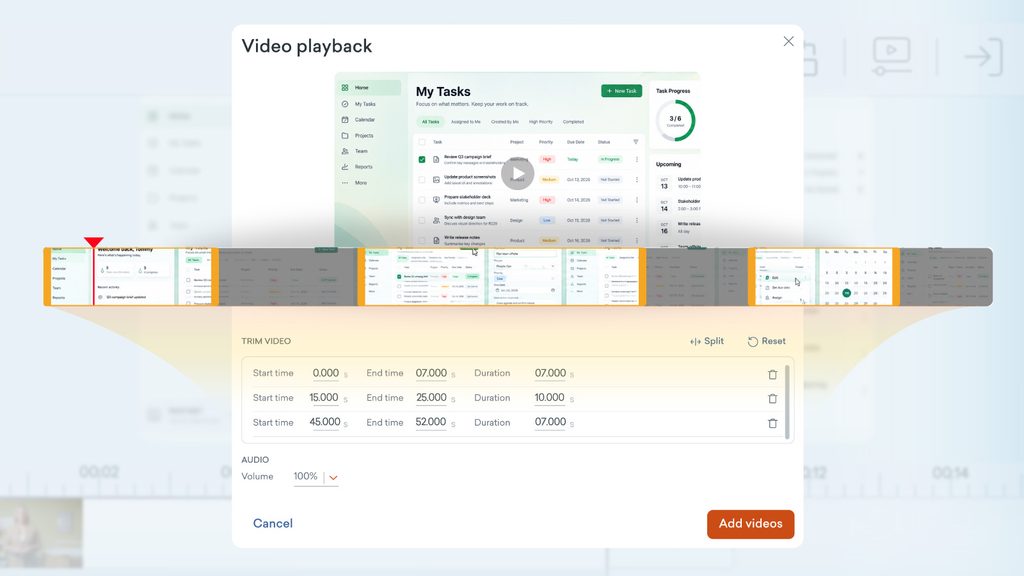
Video playback in Vyond Studio is improved, with a wider display and better timeline editing controls. Uploaded videos and screen recordings can be split, trimmed, and then dropped into new scenes. Not only that, but you can also now record your screen directly from Vyond Studio, and edit it there too. Available on all plans.
How it works
- Add an uploaded video to the stage, then with the video selected, open the Video playback from the top-right panel
- Or, from the Uploads tab of the content panel select the Record screen option and record as required. When recording is finished, select Edit now to open video playback
- Use the cursor along the timeline to move the bar for trimming the video:
- Right-click anywhere in the timeline to Split the recording, or use the Split button
- You can also use keyboard shortcuts Ctrl + \ (Windows) or Cmd + \ (Mac)
- Under TRIM VIDEO you can delete, adjust the time, or select to fit the video clip to the scene by checking the box
- Under AUDIO adjust volume
- Select Add videos to put the video clip segments directly into new scenes in your project.
Learn more about screen recording >
Share your feedback:
Please fill out a one-minute survey and help us continue to provide high quality Vyond experiences.