2026
February
Standard

Lewis and More Voices

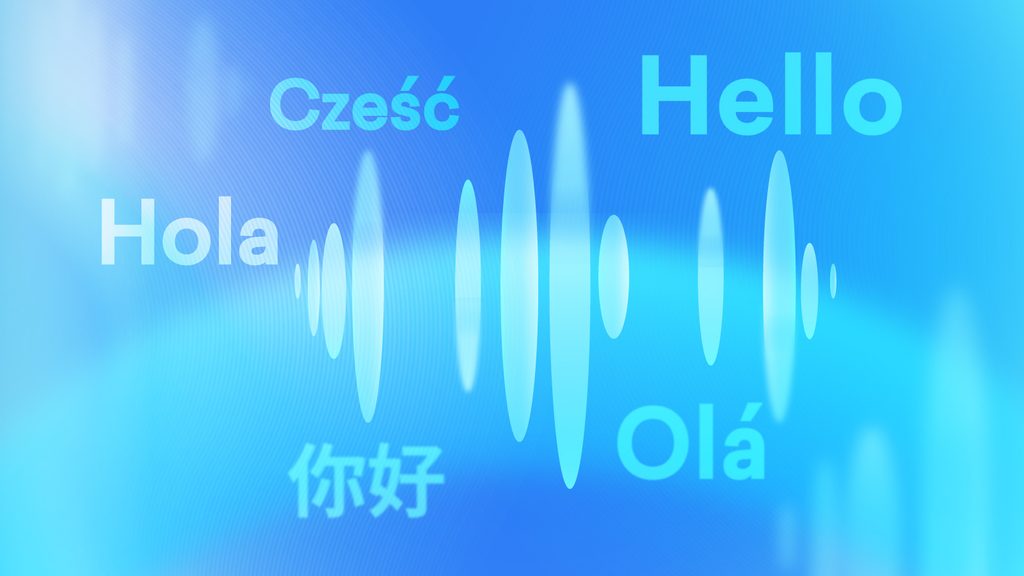
Vyond gives you the power to use lip sync voices in different scenes so you can deliver the most engaging videos. We periodically update the text-to-speech tool with more voices. This latest enhancement includes updates to 11 voices.

You’ll find that 8 Omni voices that previously only supported English, USA are now available in 91 languages and accents. These are:

  • Andrew (Omni)
  • Caleb (Omni)
  • Dana (Omni)
  • Lewis (Omni)
  • Phoebe (Omni)
  • Ava (Omni)
  • Xiaoyue (Omni)
  • Yunqi (Omni)

Other new and updated voices:

  • English, USA: Jimmie (Flash)
  • English, USA: Tyler (Flash)
  • English, USA: Noa – MAI Voice 1
  • English, USA: Teo – MAI Voice 1
  • Chinese, Mandarin: Xiaoyu

Learn more about text-to-speech >

Share your feedback:

Please fill out a one-minute survey and help us continue to provide high quality Vyond experiences.
more
Standard

Background and Dialog Editing on Avatars

This latest enhancement introduces new ways to edit AI avatars, making video creation more flexible and easier to customize for branding needs.


Backgrounds for text-prompted avatars

For avatars created from a text prompt, you can change the background image while keeping the same avatar. This opens up more opportunities to customize your videos with branded images, colors and locations.

*Please note, this feature is available to users on Professional, Enterprise, and Agency plans only.


Edit avatars in Vyond Studio

You can now directly edit the scripts and voices of avatars in Vyond Studio. Any videos created from stock avatars from the AI avatar page are editable like assets in Vyond Studio, giving you more control over the avatar content.

You can find generated footage from the avatar page, video page, or Vyond Studio in your uploads. Simply select the avatar on the stage and you’ll then see a Dialog option in the top navigation panel, and edit the text to speech or voice as needed.

Learn more about avatars in Vyond Studio > 

Share your feedback:

Please fill out a one-minute survey and help us continue to provide high quality Vyond experiences.

more
Standard

Download PNG and PPTX

There are now two more ways to download the content you make in Vyond, offering more flexibility whether you need high-quality images or a ready-to-go presentation deck format of your video. 

Images (PNG)

Download scenes as high-quality 1080p .png images. Perfect for reports, social posts, or adding to presentations. You can even download images with transparent backgrounds. Available on all plans.

Slide decks (PPTX)

Turn your video scenes into a presentation-ready slide deck to share with your team or clients, using scenes as slides.

*Please note, PPTX download is available to users on Enterprise and Agency plans only.

Learn more about downloading and exporting >

Share your feedback:

Please fill out a one-minute survey and help us continue to provide high quality Vyond experiences.

more