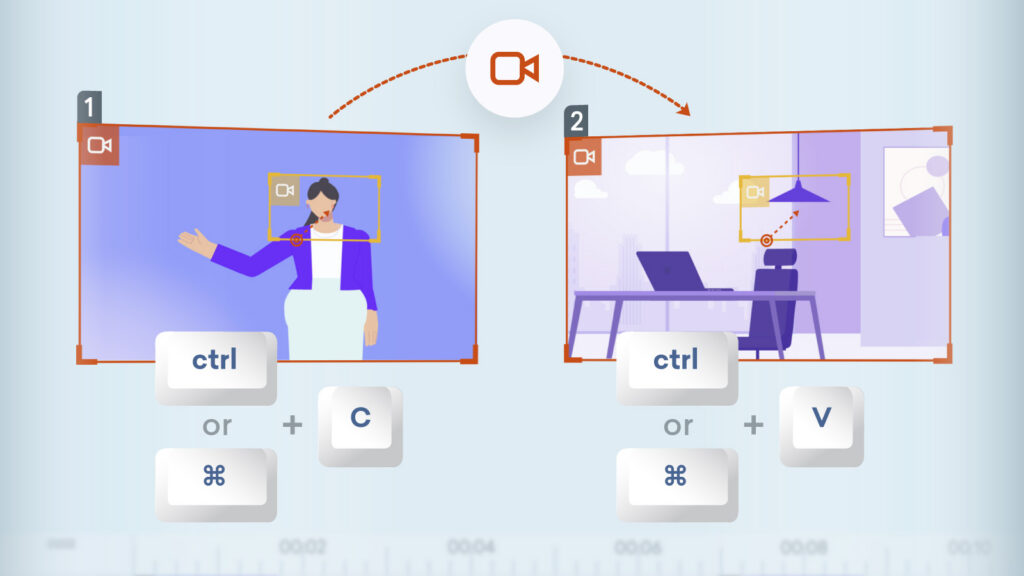
Save time and effort with the ability to copy and paste camera settings in Vyond Studio, just as you might with a prop or character asset. Now you can smoothly duplicate camera movements between scenes, or set up the same camera in the next scene faster.
How it works
- Open a video in Vyond Studio, apply camera settings.
- On the top-left of the camera frame you’ll see the camera icon, right-click the icon.
- Select Copy from the contextual menu.
- In another scene, right-click to use Paste.
For camera movement, highlight two frames at once by holding down the Ctrl / ⌘ key as you select both frames to copy.
You can also use the following keyboard shortcuts for Copy and Paste:
| Function | Windows shortcut | Mac shortcut |
| Copy | Ctrl + C | ⌘ + C |
| Paste | Ctrl + V | ⌘ + V |
Take control of scene transitions and maintain smooth camera consistency. It works across scenes, or even from one video to another video in Vyond Studio. Available on all plan types.
Learn more about camera movement >
Share your feedback:
Please fill out a one-minute survey and help us continue to provide high quality Vyond experiences.