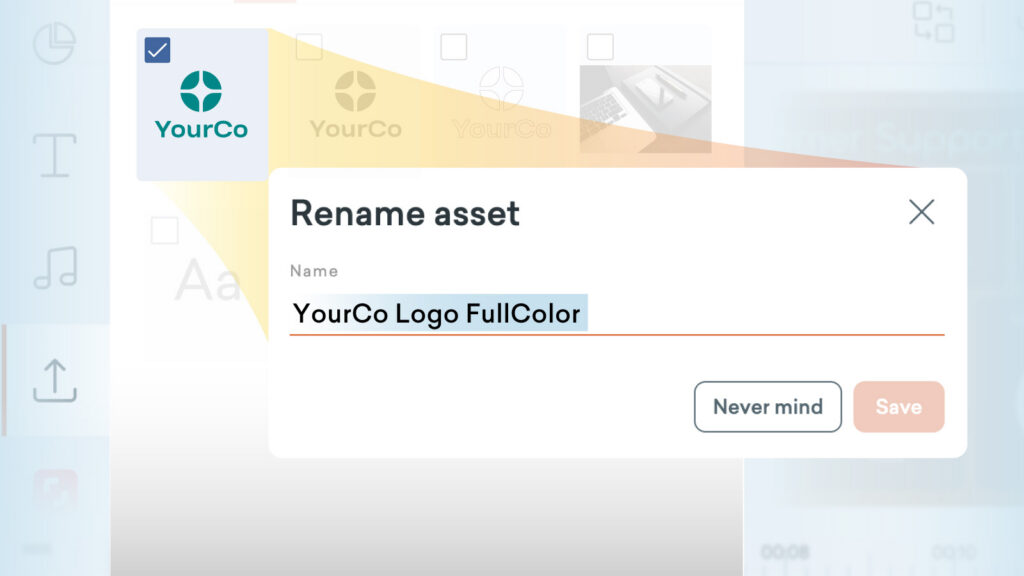
Does the number of assets in your Uploads tab seem to grow and grow? In order to locate, identify and reuse content more effortlessly, assets in the Uploads and Audio tabs can now be renamed.
How it works
- In Vyond Studio, open the content panel on the left-hand side.
- Navigate to Uploads or Audio.
- For Uploads select: My Library, Shared Library, or Transferred Content.
- For Audio select: My Library (and within that either Mic Recording, or Text-to-Speech), Shared Library, Transferred Content.
- Hover over any file to reveal the 3-dot menu, then select Rename.
- Enter a new name and click Save to update, or Never mind to cancel.
Learn more about renaming assets >
Share your feedback:
Please fill out a one-minute survey and help us continue to provide high quality Vyond experiences.