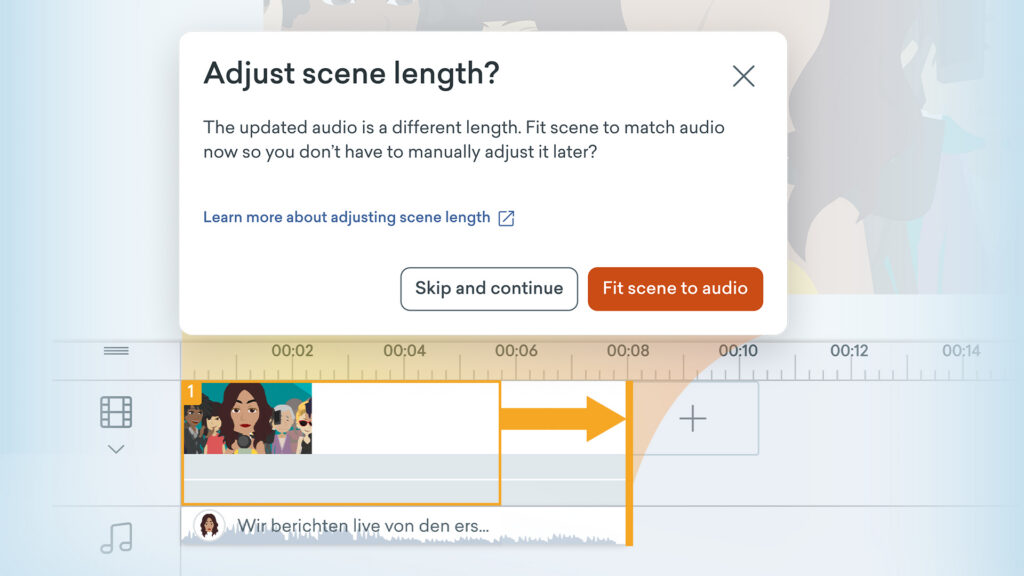
Just as you can auto-fit a scene to match video length, you can now also auto-fit a scene to match audio length.
When you update a script, auto-translate a video, create new avatar audio, or bulk replace voices, your audio duration can shift. From now on, you can auto-fit your scene lengths to match your new audio, instead of dragging in the timelines manually.
How it works
When updating AI avatar videos:
- Edit AI avatar video text-to-speech and save.
- Go to Scene Settings.
- Under Auto Fit select to match AI avatar duration.
When making bulk changes to text-to-speech:
- Import text to your scene.
- You’ll be asked if you’d like to adjust the scene length.
- Select Fit scene to audio to adjust it to the new audio duration.
Learn more about audio in the timeline >
Share your feedback:
Please fill out a one-minute survey and help us continue to provide high quality Vyond experiences.